It’s time for a bit of work-related, personal news… My career has been one where I’ve followed a slightly unusual path, jumping at opportunities that have presented themselves. From a languages degree to Technical Authoring, then to Agile as a Scrum Master, I’ve been keen to explore different areas in a way that’s hopefully also been useful to my employer at the time.
I’ve been fulfilling a Scrum Master role for more-or-less seven years now, ranging from a highly Agile software company, to an American multi-national, to most recently an academic publishing business, which can only be described as slower-paced. I’ve really enjoyed working with various teams over the years but I’ve struggled to settle into a purely Agile Coach role, often ending up more of a Project Manager (for better, or for worse).
Our current challenge at the Royal Society of Chemistry is a big one, but one that will be familiar to many companies. We’ve grown up with a huge, and largely poorly-understood, legacy in-house infrastructure which has now become unsustainable. Over twelve months ago, we took the decision to take a strangulation approach to it, and gradually rearchitect it in the Amazon Web Services cloud.
It quickly became evident, however, that even after this decision had been taken, there was little movement in actually spinning up AWS infrastructure and we didn’t have the in-house knowledge to take a best-practice approach to the architecture. As Scrum Master to the team most directly impacted by this – and therefore as the person who was supposed to remove blockers and impediments – this rapidly became a significant concern.
And so, I took it upon myself to throw myself behind the cloud adoption strategy. Last autumn, I passed the AWS Certified Cloud Practitioner exam and I started studying for the Solutions Architect Associate exam. More recently, working with an external consultancy, we’ve been looking at forming a Cloud Centre of Excellence (CCoE), as recommended by AWS. One of the features of a CCoE is to drive the organisational change needed when adopting cloud technologies, and in particular evangelising a DevOps operating model. I’ve also been showcasing the technologies to our stakeholders to help them understand the transformation we’re doing. Both of these aspects are very similar to what I had been doing promoting Agile.
Last week, all this became official. My job title is now a Solutions Architect, still at the RSC, but now in the Site Reliability Engineering team, with the aim of driving our cloud-related projects forward. I’ll still be working on the same cloud migration project with the same people but now in a much more technical capacity. I’m really looking forward to getting stuck into the new role properly as we have the opportunity to make a significant difference. Time will tell, but the team has already delivered some impressive work in the last few months, and I’m sure there’s a lot more to come.
Over the past several weeks, I’ve had a project to resurrect an old PK-232MBX AX.25 packet radio Terminal Node Controller (TNC, or basically what we’d today call a MODEM) so I can send email over radio.
The ultimate objective is to use WinLink Express with our local Raynet group. In particular, we’re involved in a number of marathons, cycle rides and other events where the main UHF voice net gets very busy with people passing routine messages about which participants have reached their location. If some of this mundane, routine traffic could be moved onto an email network, the voice net would then be clearer for any less routine message exchange, and also should decrease the probability of mistakes caused by mis-hearing numbers. It should also help the Control station with information management. WinLink provides a mechanism for email without any internet requirement. This is useful because, whilst we could set up wide area WiFi, long-distance WiFi tends to be based on point-to-point links rather than an omnidirectional service to cover an area.Thus, we can have email access over several miles of course, independent of any cellular coverage. While WinLink’s protocols can ‘piggyback’ on many different modes with a node-based infrastructure, we’d at least initially just use AX.25 Peer-to-Peer connections to carry the data.
Which is where the AEA/Timewave PK-232 comes in. This was manufactured through the second-half of the 1980s into the 1990s and in its day was the TNC to have. It supported many modes, including AX.25, and cost a fairly substantial chunk of money too. These days, now that soundcards can often perform the role of a TNC, and with the AX.25 packet radio network largely supplanted by broadband internet services, PK-232s are widely obtainable for really not very much. I picked mine up a few years ago at a continental radio rally for just €10, I believe. It has been sitting in my garage ever since awaiting a project.
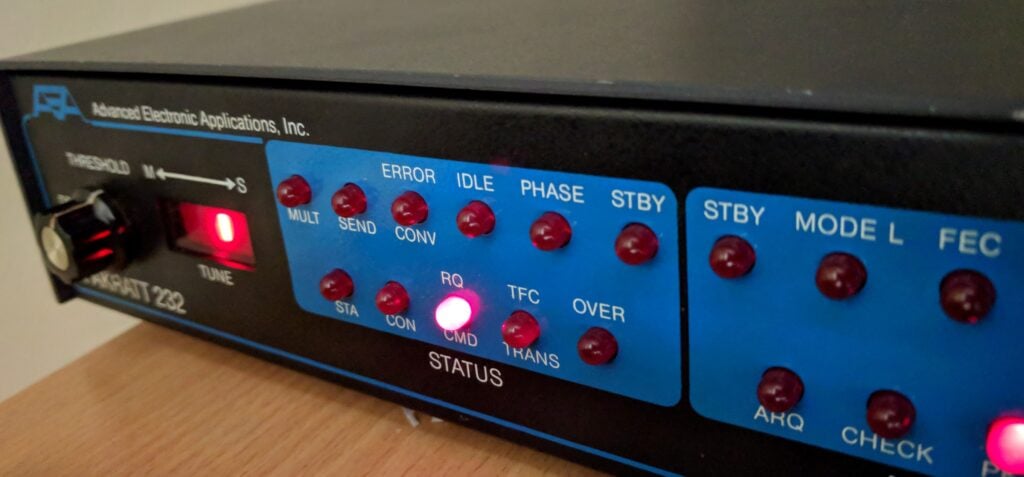
My now-working PK-232
Getting mine working proved to be a slightly complex exercise, having to piece together bits of information scattered around the internet and a lot of head-scratching, so this slightly long, technical, post explains what I did…
Tip: Skip to the Conclusion to see the main findings, but I’d strongly encourage anyone having similar problems to follow through the thinking, which is why I’ve typed it up.
The fuse
The unit was dead on initial power-on, which I soon traced to the glass 1A fuse on the circuit board. This was nice and easy to sort, thanks to a quick order from RS Components (part number 783-3343).
Basic TNC-to-computer functionality works
Once the fuse was replaced, I connected the TNC to my computer (the TNC has an old-school DB25 25-pin serial port, so you’ll probably need an adaptor), it powered on OK. I fired up PuTTy and set the basic default serial port connection parameters, typed ‘*’ and soon saw a command prompt.
The ‘default serial port connection parameters’, which are entirely separate from the RF output speeds, used by the PK-232 are unusual by today’s standards: 1200 baud, 7 bit word length, 1 stop bit, even parity. PuTTy will default to 9600 baud, 8 bit words and no parity, so you need to be careful to set the right thing or you may not see anything on your screen, or you may see gibberish.
The prompt I received showed that the firmware in the TNC dated from October 1989, about halfway through the PK-232’s production run, and certainly not the latest. Never mind, though, we have a start.
Wiring the TNC to my IC-706Mk2G
The next step was to get a connection from the TNC to my IC-706Mk2G radio. It felt as though the 6-pin mini-DIN ‘data port’ on the 706’s rear panel was the right way to do this, which meant creating an adapter lead from mini-DIN to the 5-pin molex-like plug used by the PK-232. Note that the 706’s mini-DIN annoyingly has different pinouts for 1200 baud and 9600 baud packet, which means we’ll be hardwiring to a certain speed by doing this.
I built the lead, tuned the radio to 144.800 MHz (the European APRS frequency) so there would be some APRS traffic to decode and… nothing. Absolutely nothing was received by the TNC, judging by the lights on the front. Was it my soldering? Another cable fault? I couldn’t see any obvious errors. At this point I became suspicious as all the other writeups I could find online showed people using the 13-pin full-size DIN accessory output from the 706, rather than the 6-pin mini-DIN data output.
I didn’t have any 13-pin DINs to hand to try, though, so instead I decided to go to the RJ-45 microphone connector on the front panel of the 706. It would be easy enough to wire that to the PK-232, and I didn’t even have to mess around with crimping an RJ-45 as I just needed to chop an old Cat 5 ethernet patch cable in half. The pinout for this is as follows:
RJ-45 pin    Ethernet cable colour    Role         PK-232 'Radio 1' pin
-            -                        RX audio     1    [Not connected]
2            Green                    TX audio     2
-            -                        Squelch      3    [Not connected]
7            White/Brown              Ground       4
4            Blue                     PTT          5
You’ll see that I left the RX audio line disconnected. I can’t find the source for this now, but one source on the internet noted that the IC-706’s output level from the microphone connector isn’t high enough to give reliable decodes on TNCs. That would make sense: this connection will only be designed for a small speaker/mic, so instead we use a 3.5mm patch cable to connect the 706’s rear-panel external speaker socket to the PK-232’s separate RX-IN audio input. The PK-232 doesn’t actually mind where the audio comes in, as long as the levels are OK. Having the 706’s volume knob at the 9 o’clock position seems adequate.
We don’t need to connect the squelch line as it’s optional and really only for channels that have shared voice and data traffic, which won’t be our use case.
Getting it to work with APRSIS32
Once the leads were made up, I could tune to 144.800 and APRS packets were decoded at the prompt in PuTTy. (The APRS system is built on top of AX.25, which is why this works.) We have progress! Now to find out whether we can transmit APRS (since I know there’s traffic there) before we try Winlink…
At this point I went down a long rabbit-hole trying to figure out the correct way to make the PK-232 work with APRSIS32. That isn’t the objective of this post, so I won’t dwell on it, but basically APRSIS32 doesn’t natively support the PK-232, so we need to put the PK-232 into KISS mode and then treat it as a KISS modem in APRSIS32.
Before starting APRSIS32, issue the following commands at the PK-232’s prompt in PuTTy:
This will allow you to connect to the PK-232 using the more normal 8 bit word length and no parity for the serial connection. You do not need to set expert mode on, nor set 8bitconv on, nor set rawHDLC on, all of which caused me to waste a load of time.
By the way, there is a difference between RESTART (which just warm-restarts the box) and RESET (which should do a factory reset). I say should because I found some cases where RESET appeared to reset the box but didn’t actually reset everything, leaving me in a confused state about its configuration. The only way to guarantee a reset of the PK-232 is to remove jumper J1 behind the battery on the circuit board for a minute or so, to ensure the memory is cleared. This again caused wasted time. (In fact, you’ll be removing this jumper so often that I’d recommend leaving the screws off the case until you know the PK-232 is working.)
Having restarted (not reset) the PK-232, we can connect to the PK-232 from APRSIS32. You can create a new KISS port in the user interface, or alternatively you can edit the APRSIS32 settings XML file to add the port in a more controlled way. The port configuration you need is:
I could now transmit and receive in APRSIS32. I noted, however, that the APRSIS32 log file included the following line:
Port(PK232KISS):2018-04-12T06:49:58.155 Missed Expected Response(cmd:) From Command(KISS ON)
It still worked, but that line would come back to haunt me when I tried to use the TNC from Winlink Express.
Firmware upgrade time
By this point, I knew the PK-232 to work with APRSIS32, both transmit and receive, but I couldn’t get it to work with Winlink Express 1.15.11.
Unlike APRSIS32, Winlink does natively have the option to support the PK-232, so it should just work without messing around with KISS mode. But no matter what settings I tried, I always got the same message from the Packet P2P window: Winlink would correctly initialise the PK-232, but would then say ‘Unable to connect to port COM8’. I knew no other program was holding the port open (otherwise it wouldn’t have initialised) so something else must be wrong. (Incidentally, it could connect to the COM port correctly in Packet Node mode, but that isn’t useful for me as I don’t have any local nodes).
After a bit of analysis, including monitoring the serial port traffic, I realised that the ‘native’ support for the PK-232 actually does put the PK-232 into KISS mode and, moreover, it was hanging immediately after issuing the KISS ON command. That looked familiar. It was waiting for the missing ‘cmd:’ prompt that APRSIS32 had complained about.
But I didn’t think KISS ON should return a prompt. After all, the whole point of KISS is to give a controlling computer control of the TNC, and so a user-facing prompt wouldn’t be necessary. I was mystified and yet it seemed unlikely that both APRSIS32 and Winlink would have a bug around this (even if APRSIS32 handled it more gracefully than Winlink Express). I decided that the next course of action had to be a firmware upgrade for the PK-232, to see whether ‘KISS ON’ gave a different response in later versions.
Of course today a firmware upgrade normally means a free download off a website, put a USB cable into some equipment, and press some magic button to upload the new firmware to an EEPROM (where the first two Es stand for Electronically Erasable). Not so in the 1980s. The PK-232’s firmware was stored on one (or two, depending on the version) one-time programmable EPROM (with no erasing, other than flooding it with UV light). An upgrade meant buying a new chip and installing it onto the circuit board.
So, being very careful with my phrasing here, since I couldn’t possibly condone or encourage copyright infringement, I got hold of a couple 27C512 ICs and obtained the final v7.2 firmware. Be aware that you can only use the latest firmware on a PK-232 with a serial number over about 45,000, or an earlier model with the mailbox daughter board (ie. the PK-232MBX upgrade). Mine has a serial number of 23,400-ish but with the daughter board installed, so I was OK.
Replacing the chips was straightforward enough, although the pins almost inevitably bend as you pull them out of the board, In all likelihood, you won’t be able to replace the original chip once it’s out. A strong word of caution here, since I got this wrong: the photo linked from the firmware source shows a chip marked ‘LO’ in socket U3 on the board. This is incorrect and, if you follow it, you’ll likely have trouble getting the IC back out again as explained above. You want to put the v7.2 LO chip in socket U1 and v7.2 HI in socket U3.
Pull out jumper J1 (just behind the battery), wait a minute and then replace it to ensure the memory is clear.
Phew, it boots!
KISS mode, control flow, and the question of timing
As I had expected, issuing the KISS ON command in the v7.2 firmware behaves no differently from my earlier version. It still doesn’t produce a command prompt, so the Winlink problem was still there. It couldn’t connect to the COM port in Packet P2P mode.
What I did know from the earlier COM port sniffing, however, was that Winlink was actually trying to put the PK-232 into KISS mode. So what if I put it into KISS mode manually, and just connected to it from Winlink as a straight-forward KISS modem?
Using PuTTy, I issued the commands that APRSIS32 had used: XFLOW OFF / FULLDUP OFF / CONMODE TRANS / KISS ON, then closed PuTTy and started Winlink Express and told it to connect to a KISS modem.
Success at first… I could call a station using Winlink Express and, when the call happened, the radio went into transmit mode and transmitted something. But nothing was ever received. I even tried using a laptop + Kenwood D72 as another Winlink station positioned literally right next to the PK-232. The D72 heard the request from the PK-232 and transmitted a reply, but the PK-232 couldn’t decode the reply, so the handshake never succeeded.
I again turned to sniffing the COM port traffic and noticed that there was never even an attempt by host computer to read from the serial line. This also matched what I could see if I connected to the PK-232 with PuTTy immediately after Winlink: the read buffer would immediately be printed out onscreen as soon as PuTTy connected, so the replies were just being stored on the PK-232 and not being forwarded to the computer.
I started double-checking everything I knew and was eventually drawn to that mysterious command ‘XFLOW OFF’. What exactly did it do? It was the only thing I had no knowledge of at all.
It turns out that old-style serial communications could only be one directional at any given time. To implement a send/receive scenario, therefore, you had control flow logic to decide whether the host computer could send or receive at any moment. This control flow could either be implemented in software by sending control characters as part of the data, or in hardware through the RTS/CTS pins of the serial connector. More about RS-232 flow control here. XFLOW OFF was setting the software flow control off, and so implicitly asserting that hardware flow control was to be used. I started to suspect that this switching between transmit and receive was at the root of the problem. I could transmit OK but if the D72 was starting its reply before the PK-232 had switched over to receive, that would explain why the replies couldn’t be decoded. That seemed entirely plausible with a modern fast computer replying to a connection request from old 1980s hardware. Control flow would also be consistent with the computer not even attempting to read the decoded information. It would also explain why APRS worked: APRS is a single broadcast beacon message, with no handshaking and probably several seconds between your signal and another person’s signal – plenty of time for changeovers to complete.
The breakthrough
My first step was to increase the serial baud rate for the connection between the computer and the PK-232 to 9600 baud, from 1200 but that didn’t help.
I should mention that the PK-232 technical manual says that hardware control flow is generally implemented only on the RTS pin. If you want to use full hardware flow control over the CTS pin as well, you can do that by setting all of XON, XOFF, START and STOP to null, ie. $00. That didn’t help either.
While considering other options, I also played around with trying other settings in Winlink for alternative KISS-type TNCs, but I couldn’t get any of them to reliably work. I also tried the Extended KISS mode available in the later PK-232 firmware (command KISS $03 to enable it), without success.
Somewhat in frustration, I then tried setting Winlink to treat my PK-232 as a PK-96 under native (not KISS) mode. Suddenly everything sprang into life and I could both send and receive.
Conclusion
In summary, therefore:
Don’t trust the RESET command on the PK-232. Use the jumper on the circuit board as not everything will always be reset otherwise.
Winlink seems to have a bug in its Packet P2P connection mode (but not in Node mode), where it hangs waiting on the ‘cmd:’ prompt after issuing the KISS ON command, which it will never receive by the very design of KISS ON.
APRSIS32 also has this bug but handles it gracefully, merely logging the error and then connecting anyway.
In the case of Winlink, connecting to the PK-232 as a PK-96 works around this issue, with no adverse effects that I have found so far.
Putting my PK-232 into KISS mode manually and then trying to use Winlink to connect to it as a generic KISS modem doesn’t work. I strongly suspect a control-flow / timing problem but I found the PK-96 workaround above before I completed this investigation.
Wow! After many more hours than should have been necessary, I now have a PK-232 driving my IC-706Mk2G and sending/receiving email over RF, which we can use in the control station at Raynet events, while we use laptop/D72 combinations in the field.
Postscript: The working configuration
And finally, just because I wanted this information so badly while working on it myself, here’s the complete known-working configuration (output from DISPLAY Z) of the PK-232 when used with Winlink, pretending to be a PK-96:
Connect Link state is: DISCONNECTED
UPlink
Unproto CQ
3Rdparty OFF
8Bitconv ON
AAb
ABaud 110
ACKprior OFF
ACRDisp 0
ACRPack OFF
ACRRtty 71
ADelay 4 (40 msec.)
AFilter OFF
ALFDisp ON
ALFPack OFF
ALFRtty ON
ALTModem 0
ARQTmo 60 (60 sec.)
ARQTOL 3
ARXTor OFF
ASPect 2 (576)
ATxrtty 0 (000 msec.)
AUdelay 2 (20 msec.)
AUTOBaud OFF
AWlen 8
Ax25l2v2 ON
AXDelay 0 (00 msec.)
AXHang 0 (000 msec.)
BBSmsgs OFF
Beacon EVERY 0 (00 sec.)
BItinv $00
BKondel ON
BText
CANline $18 (CTRL-X)
CANPac $19 (CTRL-Y)
CASedisp 0 (as is)
CBell OFF
CFrom all
CHCall OFF
CHDouble OFF
CHeck 0 (00 sec.)
CHSwitch $00
CMdtime 10 (1000 msec.)
CMSg OFF
CODe 0 (International)
COMmand $03 (CTRL-C)
CONMode TRANS
CONPerm OFF
CONStamp OFF
CPactime OFF
CRAdd OFF
CText
CUstom $0A15
CWid $06 (CTRL-F)
DAYStamp OFF
DCdconn OFF
DELete OFF
DFrom none
DIDdle ON
DWait 16 (160 msec.)
EAS OFF
Echo OFF
ERrchar $5F (_)
EScape OFF
FAXNeg OFF
Flow OFF
FRack 2 (2 sec.)
FREe 18536
FRIck 0 (00 msec.)
FSpeed 2 (120)
FUlldup OFF
GENDchar $0D (CTRL-M)
GINIText
GLOCtx 0 (00 sec.)
GNMEA1 $GPGLL
GNMEA2
GPOLLcal none
GPSAuto OFF
GPSMode 0
GREMprog OFF
GSYMchar $00
GUNstart OFF
GRaphics 1 (960 dots)
GUsers 0
HBaud 1200
HEAderln ON
HEReis $02 (CTRL-B)
HId OFF
HOMebbs none
ILfpack OFF
KILONFWD ON
LAstmsg 0
LEftrite ON
LIte OFF
MAildrop OFF
MARsdisp OFF
MAXframe 2
MBEll OFF
MBx none
MCon 0 (none)
MDigi OFF
MDMon OFF
MDPrompt Subject:/Enter message, ^Z (CTRL-Z) or /EX to end
MFIlter $80
MFrom none
MId 0 (00 sec.)
MMsg OFF
Monitor 0 (none)
MOPtt ON
MProto OFF
MRpt ON
MSPeed 20
MStamp OFF
MTExt Welcome to my Timewave PK-232M maildrop.
Type H for help.
MTo none
MWeight 10
MXmit OFF
MYAlias none
MYALTcal none
MYcall M0BLF
MYGate none
MYIdent none
MYMail none
MYPTcall none
MYSelcal none
NAVMsg all
NAVStn all
NEwmode OFF
NOmode ON
NUCr OFF
NULf OFF
NULLs 0
PACLen 128
PACTime AFTER 10 (1000 msec.)
PARity 0 (none)
PASs $16 (CTRL-V)
PASSAll OFF
PErsist 160
PPersist ON
PRCon OFF
PRFax ON
PROut OFF
PRType 2
PT200 ON
PTHuff 0
PTOver $1A (CTRL-Z)
PTRound OFF
RBaud 45
RECeive $04 (CTRL-D)
REDispla $12 (CTRL-R)
RELink OFF
RESptime 0 (000 msec.)
REtry 5
RFec ON
RFRame OFF
RXRev OFF
SEndpac $0D (CTRL-M)
SLottime 60 (600 msec.)
SQuelch OFF
SRXall OFF
STArt $11 (CTRL-Q)
STOp $13 (CTRL-S)
TBaud 9600
TDBaud 96
TDChan 0
TIme $14 (CTRL-T)
TMail OFF
TMPrompt GA subj/GA msg, '/EX' to end.
TRACe OFF
TRFlow OFF
TRIes 0
TXdelay 60 (600 msec.)
TXFlow OFF
TXRev OFF
USers 1
USOs OFF
Vhf ON
WHYnot OFF
WIdeshft OFF
WOrdout OFF
WRu OFF
XBaud 0
XFlow OFF
XMITOk ON
XOff $13 (CTRL-S)
XON $11 (CTRL-Q)
This weekend, for the combined reasons of interference from Low Power Devices and also an opportunity to enable a new DMR repeater for Cambridge, the well-established GB3PY repeater has moved frequency. It was on 433.200MHz (+1.6MHz split) and is now on 430.900MHz (+7.6MHz split).
This brought an interesting question: other than website and email, how could the Cambridgeshire Repeater Group notify users of the repeater about the impending change? My solution was to add a voice announcement after the normal CW ident, initially saying ‘GB3PY will change frequency soon. For more information, see cambridgerepeaters.net’, and then adding in frequency information in the 24 hours before the change. This way the message was kept short and unobtrusive, whilst also giving everyone the notice they needed.
It wasn’t possible to get extra equipment for this special voice logic installed at the transmitter site, however, which meant that the announcement ran from my house, which brings its own set of problems: if the announcement were just on a timer, it would ‘double’ with any ongoing QSOs on the repeater, so the logic at my QTH needed to know the state of the repeater’s logic without having any special access to the repeater circuitry.
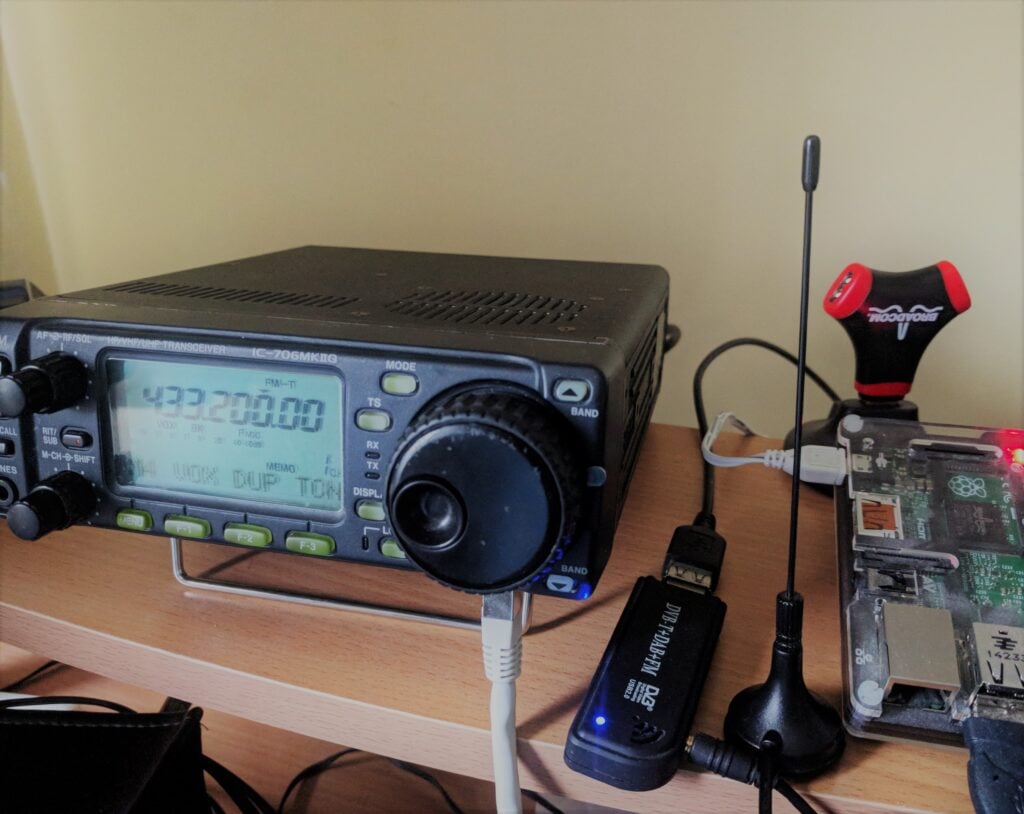
The solution that I came up with was rather hacky, but I am also rather proud of it. At the heart was a Raspberry Pi 2, running a fairly simple Python script. Transmit was generated by a USB soundcard attached to the Pi, feeding into my IC-706MkIIG, which was set on Vox, with a long (3s) Vox Delay, thereby avoiding the Tx/Rx switching happening mid-message. The audio file that was played started with a 300ms 1750Hz tone, not to open the repeater but rather to open the Vox circuitry on the 706 before the announcement started.
The setup for the GB3PY voice announcement
Reception of GB3PY was provided by a cheap RTL SDR dongle. Every five seconds, rtl_power running on the Pi, would sample the signal strength on 433.2MHz to determine whether a carrier was present or not. In my case, using a gain value of 20 for rtl_power, a carrier was a signal strength over -25dB. Other setups and locations may require different values.
The number of samples over which the carrier was present was used to determine the state of the repeater:
3 or fewer samples – that was a CW ident (or just someone quickly keying the repeater)
20 or more samples – this is an ongoing QSO
4-19 samples – other state (for example, someone calling for contacts)
The program does different things depending on each of these states:
If it was a CW ident, which has now finished, and it was the 4th such ident, then call a system command to play the voice ident out of the USB soundcard
If it is an ongoing QSO, just reset the counter on the number of CW idents that have happened since the ident was last played.
This is so that if someone briefly keys the repeater immediately after the QSO ends, such as another person wanting to continue the conversation, the voice ident will not play and interrupt them.
In any other state, just ensure we don’t play the file
Obviously, you may need to tweak the audio level out of the soundcard, for example with alsamixer, to get the levels right.
If other repeater groups are interested, you can get the code I used. It isn’t pretty but it works!
This post describes a project I’ve been working on during Christmas this year. It is a project that’s absolutely not for the inexperienced, so if you decide to take any of the ideas in this post – which you’re absolutely welcome to do – I won’t be able to assist.
This is Part 1 of the post. Part 2 hasn’t been published yet (I’ll edit that when I get around to part 2). The scripts referred to here and all the other code will be made available on GitHub when Part 2 is published.
The problems:
Ubiquity or Functionality?
There are loads of amateur radio logging programs out there, and over the years I’ve tried many of them. Most suffer from a common problem, however: because our radio equipment is increasingly used under computer control, we opt to keep our logs on our shack computer, which can have soundcards and serial ports connected to the radios.That understandable quest for functionality in the logging software has a disadvantage, however: if we operate a portable station at different locations, we either have to take our logging computer with us, or else go through some routine of remembering to import and consolidate the logs in a single place later.
Other logging programs, such as 2M0SQL’s Cloudlog, take the alternative approach of being an online, hosted log. You can enter your contacts from anywhere, but that comes at the cost of not being able to connect the logging computer to your radio – for sound security reasons, web browsers can’t access serial interfaces connected to your computer.
Today, there are hacks which try to resolve this disadvantage. M0VFC’s CloudlogCAT program, for example, essentially gives Cloudlog some ability to talk to the radio by proxying commands through a local client computer. In the future, WebUSB should allow web browsers to talk to connected devices in a secure manner, but that will require new chips in our radios, and I can’t see the manufacturers adding support any time soon.
Backups and security
Having our logs stored on a local logging machine has a substantial disadvantage: we are responsible for our own backups and keeping our logs safe. We know this isn’t happening. All too often, we hear of people who have lost their logs in a hard-drive or virus incident, with the resulting impact on other people who need those log records. One of the advantages of a system hosted online, by someone else, is that they can maintain backups.
And other problems…
I’ve ranted before about how I don’t believe amateur radio log programs generally don’t have the right data model: when I go on a DXpedition somewhere, even just making a handful of contacts from a SOTA summit, those QSOs should be grouped together in my log as they share common information like locator square, IOTA/SOTA reference, etc. This means we need the concept of ‘activation’ in the log, as a parent of the child QSOs. This becomes especially critical if I’m uploading the QSOs to Logbook of the World, for example, as I want all the QSOs to be signed with the right grid square, which may not apply to the rest of the QSOs in the log. I’m amazed that too many logs still haven’t got this concept right. As we increasingly rely on automatic methods for uploading and signing QSO information and then claiming awards, there’s massive scope for errors if people are just signing data with a default certificate configuration because that’s all their program allows.
Enter Log4OM
I like to try different logging programs on a regular basis as its a fast-moving field in terms of functionality. About a year ago, I re-discovered Log4OM and decided to stick with it. Whilst it isn’t perfect (it doesn’t support the concept of activation described above, for example, and being desktop software it doesn’t allow ubiquitous logging), it has most of the features I require and good QSL management tools – critical for me as I deal with a lot of DXpedition QSOs each year.
At a technical level, Log4OM runs using a SQLite database by default – a sensible choice as it allows for easy first-time installation that ‘just works’. For those of us who know what we are doing, however, we can opt to switch to a MySQL database instead. MySQL is a database server program that’s designed to be used in a client/server architecture and is a very mature product – it is behind a lot of the world’s websites.
For the last year, I’ve been using a local MySQL server with my Log4OM installation (thereby continuing to sit on the ‘functionality’ side of the ‘functionality/ubiquity balance’ I described above. Then it occurred to me a couple months ago that there was no need to do this…
To the cloud! (AWS EC2, to be precise)
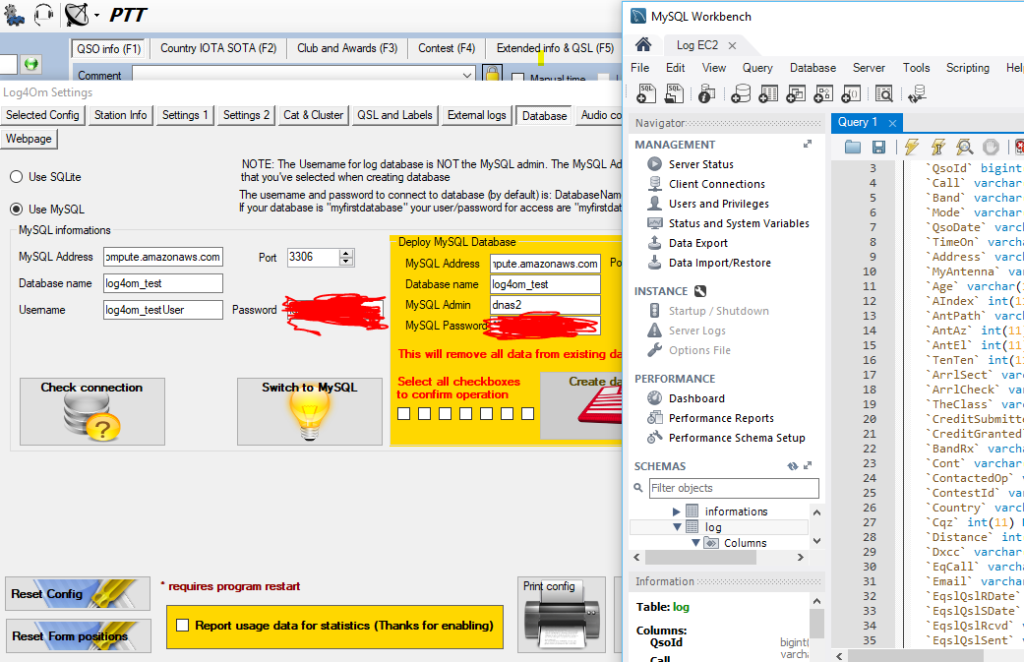
As I said, MySQL is designed for use in a server/client architecture, so just running the database locally on my computer means I wasn’t taking full advantage of its abilities. A few weeks ago, I spun up a T2-Nano Ubuntu Linux machine in AWS EC2, part of Amazon’s cloud-computing infrastructure, and installed MySQL on it. It was then just a matter of uploading the data from my local MySQL server to the one in EC2 and then changing the Log4OM profile for each of my logs to reflect the new login details. Since Log4OM doesn’t support MySQL connections over SSH, I also created a different user with restricted permissions and a non-default password that I’d use for logging in from Log4OM, and removed the default users that are created by Log4OM when new databases are created.
Testing connection to EC2 from Log4OM settings
Sure enough, I was soon connected to the database in the cloud from Log4OM:
Connected
(For the benefit of anyone else trying this, I also found a bug in Log4OM’s MySQL support, and an associated workaround, in the course of moving to a new MySQL installation.)
To summarise where we’re up to before I go any further:
I’ve now got Log4OM on my local desktop computer, acting as desktop software with CAT and soundcard connections to my K3, but using a database hosted by Amazon.
This resolves the ubiquity / functionality conundrum: I have full functionality from my logging software but the flexibility to connect to a single, always-on, database from any computer anywhere with an internet connection, as log as it has Log4OM installed.
A note about performance
Connecting Log4OM to a hosted database in the cloud doesn’t come at nil performance cost. Everything, particularly some of the batch operations such as marking several QSLs as sent, takes a few more seconds than you’ll be used to on a local server. As you might expect, this is worst with very large logs (tens of thousands of QSOs), but I haven’t found it to be so annoying that this slowdown would outweight the other benefits.
Handling backups
As I mentioned, one of my concerns was backups and data security: I wanted to not have to bother about such issues in a hosted world. Had I gone for a database on the AWS RDS product, this would indeed have been handled by Amazon for me, but because I had gone for EC2 (for both cost and extensibility reasons), I would have to handle backups.
In a sense backups are even more critical on EC2 than on home computers, as EC2 storage is ephemeral: if the server is switched off all its data is lost and has to be recreated.
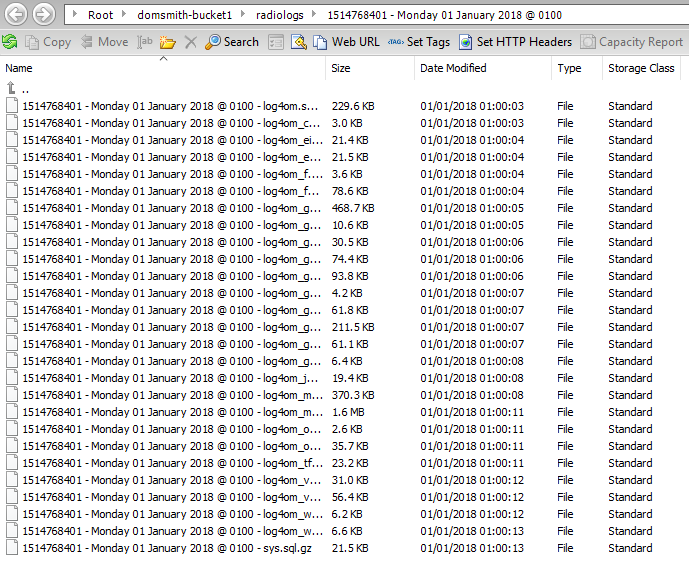
The first stage was to write a script to ship gzip’d copies of all the MySQL database tables to an S3 bucket every month. I also then wrote a script to store weekly incremental ADIFs of contacts since the start of the month, which is then emailed to me from the server. This means that a maximum data loss I should be exposed to at any time is 7 days (although Log4OM is set to upload all QSOs immediately to Clublog, so I could even recover the last 7 days if I needed to).
Backups stored in an S3 bucket
Contest logs
For reasons that will become clear in Part 2 of this post, I also wanted to make ADIF backups of my various contest logs available separately, as I’m a great believer in making contest logs public for transparency. Having installed lighttpd as a web server on the EC2 instance alongside the MySQL database, a script checks for any contest entries the previous weekend each Monday and creates ADIFs for each contest. These are then exposed over HTTP (but not necessarily published on a website). There’ll be more on this in Part 2!
As with all the other scheduled scripts that I mention in this post, I’ve also got a ‘rebuild’ version of the script for restoring old data when I lose the ephemeral storage.
With that, we have two of the three problems resolved: I have a good balance between ubiquity and functionality, and backups are being handled. Now onto the third…
SOTA Logger
One of the use-cases where I find Log4OM to be weaker is logging SOTA activations. Whilst it’s great that it supports SOTA at all – many logging programs don’t – entering QSOs in the Log4OM UI is a bit complex. This is because the SOTA reference has to be entered on another tab and, while the database schema allows for different values for the ‘MyGridReference’ field per QSO, there’s nowhere in the UI to enter your grid reference other than the default for the station.
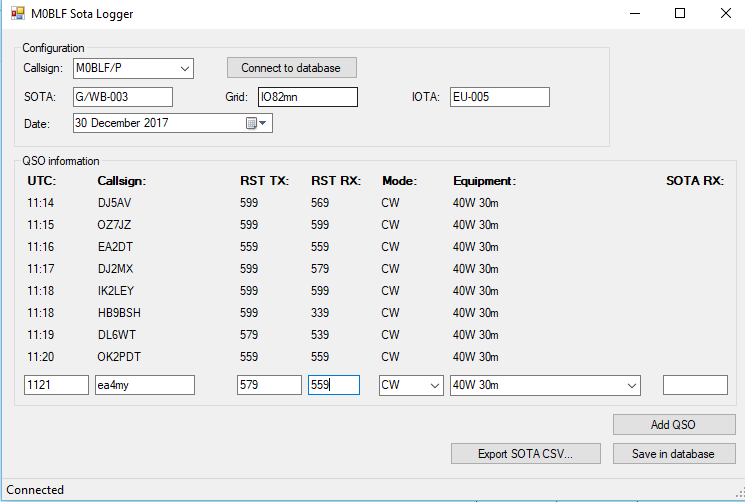
Since my database is in the cloud, it is now divorced from Log4OM itself. This means that, as long as I don’t alter the schema (the database structure) in a way that is incompatible with Log4OM, I don’t have to use Log4OM for logging, Anything that gets into the database by whatever means will be picked up by Log4OM. My solution to the SOTA problem was therefore to write a program called SOTA-Log4OM. This does what it suggests: it’s a very simple program for logging SOTA activations that connects to the Log4OM database and enters the QSOs with the correct information, including grid reference, etc. It also creates an activation CSV for upload to the SOTA website.
SOTA Logger
Each week on a Tuesday (to give me time to type up a log from a weekend activation), ADIF records for each SOTA activation in the previous week are created (if there are any), and exposed for download over HTTP… again, the reasons for this will become clear in Part 2 of this post!
Again, I’ll take a break to summarise my progress:
We have the MySQL database for Log4OM running in the cloud, as an always-on instance that can be connected to from anywhere
This allows us to keep the functionality advantages of having desktop logging software with CAT control and soundcard connected to the radio, whilst letting us log from anywhere without having to merge logs or synchronise databases
We are backing up the logs monthly to S3, with weekly incremental backups over email
Contest logs are also created separately and exposed over HTTP
For logging SOTA activations, we have our own simple UI that logs QSOs into the same MySQL database as used by Log4OM
Those SOTA logs are then exposed for download over HTTP
Signing LOTW records correctly
As described in the introduction, I have a problem with logging software that automatically signs QSOs for LoTW in that there is often no separation of QSOs by activation. When you sign a LoTW upload, you are signing with a ‘Station Location’, which is a combination of DXCC, Gridsquare and IOTA (if applicable). I rarely see logging software create new ‘Station Location’ records for different QSOs in the same log, however – Log4OM certainly doesn’t. This lack of support has stopped me from regular LoTW uploads in recent months, especially given the number of SOTA activations I’ve done with a handful of QSOs from each different QTH. I don’t want to be creating new ‘Station Locations’ myself for each QTH.
I do have all that information in my logs, though, so I can deal with this now that I have a database server where I can run scripts. On a monthly basis, for each QSO, I create a ‘placehash’: an MD5 hash of the results of concatenating my callsign with all the information needed for a ‘Station Location’ in a particular way. On a monthly basis, a zip file of ADIF files containing the previous month’s QSOs separated out by placehash is exposed at the server’s HTTP port, ready for download.
Also created monthly is a station_data file. The TrustedQSL software uses a station_data file (which is actually XML) to define the Station Locations. All I need to do is to overwrite the station_data file stored in the user’s Roaming profile in a Windows installation of TrustedQSL with the one created by the logging server, and TrustedQSL will ‘know’ about all the different station locations I have visited.
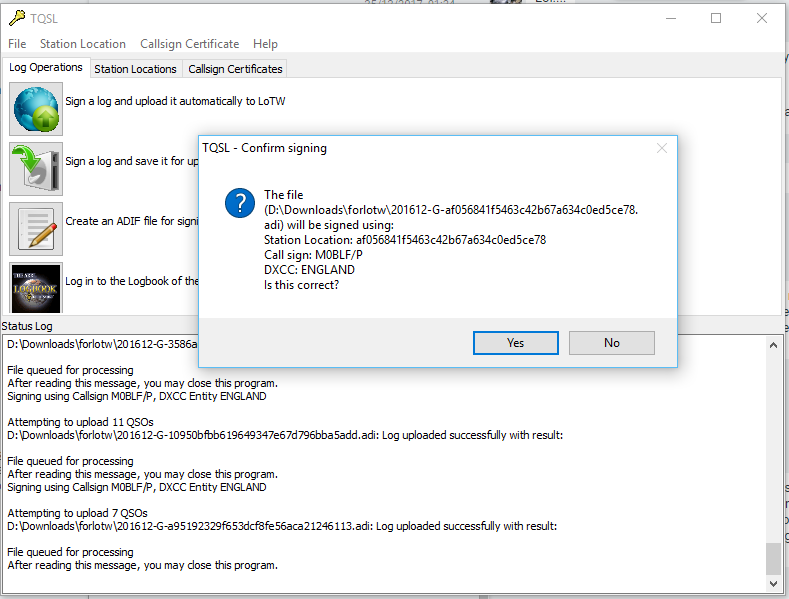
I just then need to sign the log (containing the placehash in the filename) with the Station Location for the same placehash and I can be sure that all my LoTW records are signed correctly.
Signing a LoTW record by placehash
Ideally I’d like to automate this process on the server. Although it looks like this would be possible with the tqsl command line in the Linux version, I haven’t yet found a way to install TrustedQSL without the 320MB of (mainly graphics-related) dependencies, which I’d like to avoid given that it’s being stored on an ephemeral system.
Clublog OQRS merging
Is there anything else I can solve while I’m at it? As I said, one of my biggest time-sinks is handling QSL cards for DXpeditions I’ve been on. OQRS – the ability to request a QSL card online, with postage covered over Paypal – has certainly sped up the process a lot but there’s still a manual step: each time I do cards I have to log into Clublog, download an ADIF containing the QSL requests, and merge it into the Log4OM log, so that the Print Labels option in Log4OM prints requested QSL cards.
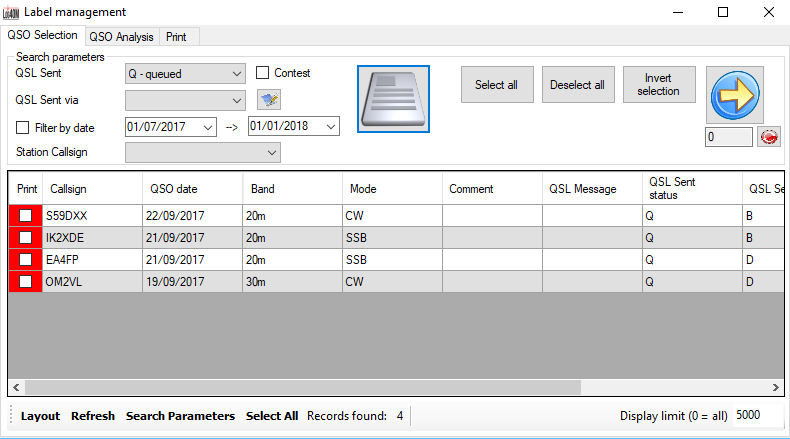
So, I wrote a script to live on the database server to download any OQRS files from Clublog on a weekly basis, and do the merge for me. This means I just need to press the Print button in Log4OM and requested card labels emerge without me doing anything else.
QSL labels ready to print
Another script also creates an ADIF file of sent QSLs each month and exposes them over HTTP. Again, see part 2 to understand why!
As you can probably tell, this is all part of a much bigger project. I’m really keen to hear feedback on where I’ve got to so far, and hopefully I’ll be able to publish Part 2 soon. There’s a lot more to come!
It’s the call every IT-savvy child of elderly parents dreads: ‘I got a message on the screen saying my computer had a problem and I had to call Microsoft. I rang them and they took control of the computer, then said it would cost several hundred pounds to put right…’. Oh, oh.
So, having told them to switch it off and disconnect everything (including the router and the external hard-disk that serves as their on-premise File History drive), this last weekend, I took the 600 mile round-trip to go and look at the machine and see what I could do.
This blog post is a write-up of my approach in case anyone finds it useful later. I’ve written it partly because I couldn’t find something similar when I first got the call, so had to make my approach up as I went along. I’m not saying it’s the best approach, it’s just how I decided to tackle the problem. I should say, this post is very technical and not for the faint-hearted. I also naturally can’t be responsible for anything that happens if anyone else follows this write-up.
Before the technical bit, though, it’s important to say something about emotions. My parents were understandably devastated they’d fallen for the scam and were very upset by the experience. I was therefore very clear with them: they were victims and mustn’t put any blame on themselves for being silly. The impact of their emotional state, however, meant that I didn’t want to risk rubbing salt into the wound by asking about what the person involved had done while they had remote control. It’s highly unlikely they’d have an accurate memory of what they saw on the screen in any case. This meant that my approach was to assume the worst and that everything was potentially compromised.
Backups
My parents’ computer didn’t have a full disc image. I back up the documents folder every few months and store those backups at my house, and they have an external hard disk used for File History. This meant that Plan A for the recovery was to rescue everything off their drive if possible, if not I’d use my latest backup, mixed with the File History for newer material.
Preparatory work
Before leaving my house, I burnt two DVDs: one with a copy of Trinity Rescue Kit, and the other with Windows 10 recovery media (read this first). Both would turn out to be invaluable in the rescue. I’d also kept an offsite backup of my parents’ computer from a few months previously at my house and just in case I copied that backup to an S3 bucket to make it more accessible. (It wouldn’t fit on a DVD.) I also took a Raspberry Pi with me in case I needed to mount the external hard disk in a different Linux environment, although I didn’t need this in the end.
The router
Not knowing what the suspected criminal had done, one of my biggest fears was that the router had been attacked and dodgy firmware installed to facilitate MITM attacks by providing inaccurate DNS lookups. I quickly verified that wasn’t the case: the DNS addresses set in the router firmware matched ranges used by the ISP’s infrastructure and the firmware version reported matched a recent update. Phew.
Rescuing data
Before even considering booting into Windows to investigate the damage, I thought it best to get as much data off the machine as I could, in case some of it was recoverable. (I wanted to avoid booting to Windows in case it was a crypto-locker that had a service set to run on startup that would continue encryption where it last finished.)
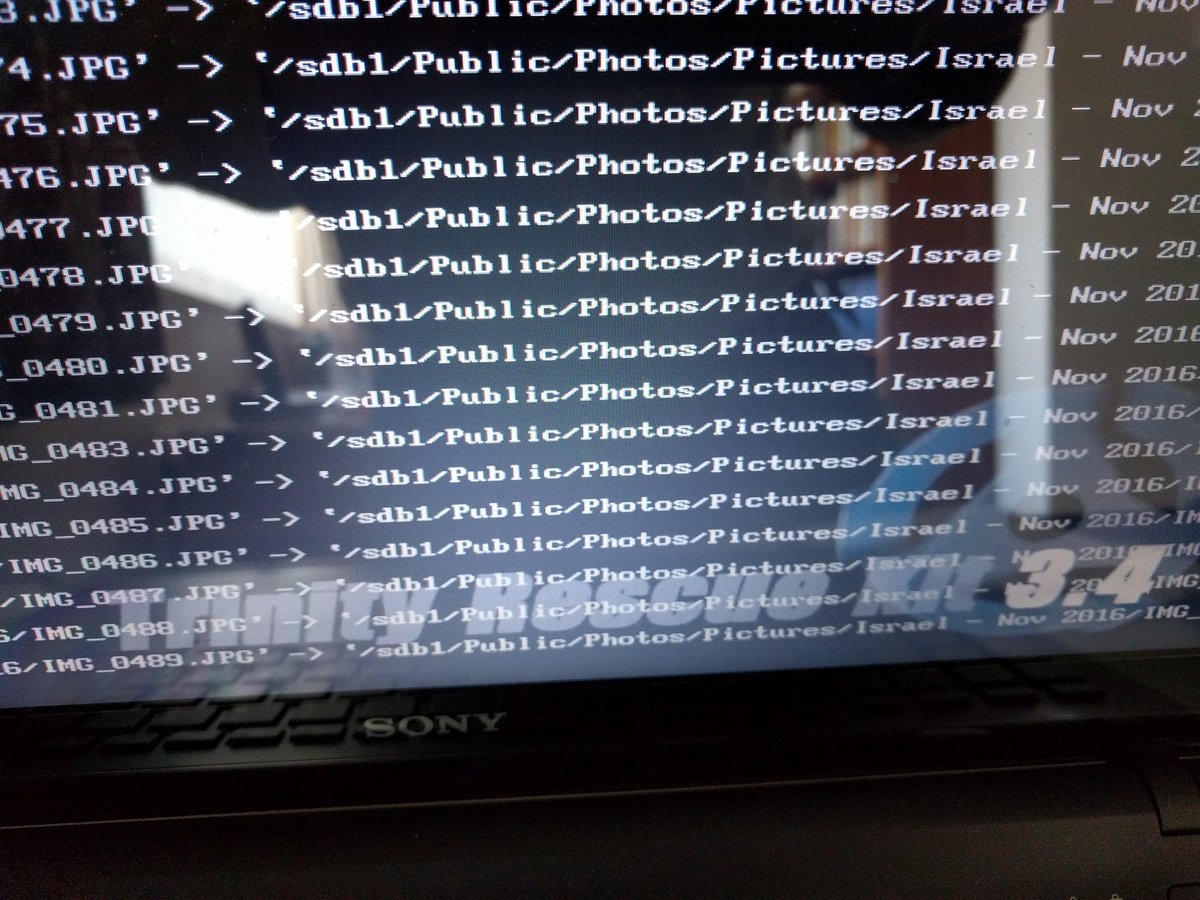
To do this, I needed to boot Trinity Rescue Kit (TRK) (a cut-down command-line only version of Linux designed to be used as a Live CD for rescues). But even after setting the BIOS to use the Optical drive as primary boot medium, booting failed on the Sony Vaio laptop involved. I could only get to the Vaio’s own recovery screen, which I suspected was just a frontend to WinRE (the Windows Recovery Environment). After a bit of research, I realised the BIOS option I’d forgotten was to allow Legacy boot (as opposed to UEFI). Once that was changed, Trinity Rescue Kit booted successfully.
I inserted a clean memory stick into the USB socket and then used the TRK menu to mount all local filesystems, then exited to shell.
Using
fdisk –l
to list the mounted drives, it took a little looking to spot the main drive partition seen by Windows as C: – the disk also appeared to have two recovery partitions on it, plus a couple of other partitions.
df –H
showed the free space on all drives, including the 100% free on the memory stick, helping me check where that had mounted.
Then it was a matter of copying files using the copy recursive, verbose command, and pretty much leaving it to do its thing.
cp –rv source destination
My initial concern was email, since I suspected I didn’t have recent backups of that. My parents use Mozilla Thunderbird, which stores emails (and address books) within the user’s roaming profile at C:\Users\<name>\AppData\Thunderbird\Profiles, so that was the first thing I copied.
Having done that, it was onto Documents, Music and Photographs.
Rescuing precious photographs in Trinity Rescue Kit
A few hours later, I had a memory stick full of data, but didn’t know whether it was useful or damaged.
Putting that memory stick carefully to one side, I decided it was time to take a look at Windows.
Booting the damaged copy of Windows
A quick trip back into the BIOS to reset the boot type to UEFI, and checking the network was unplugged, it was a matter of starting Windows normally. Windows booted fine, but into Safe Mode. I immediately got a couple of ‘application failed to start’ errors, and then noticed a number of drivers were missing, meaning things like audio services and networking were broken. Trying ipconfig at the command prompt gave no results, suggesting to me that this was indeed a broken copy of Windows (although on reflection I realise it might well have just been Safe Mode without Networking, but I wasn’t taking chances…)
Since restoring Thunderbird email by copying a whole profile, rather than the mailbox, isn’t the recommended route, I put a copy of ImportExportTools on another (clean) memory stick and used that to install that add-on into Thunderbird. That then allowed me to export the mailboxes as ‘mbox with subfolders’ onto that same memory stick.
I noticed the tell-tale sign of a recently installed copy of Citrix LogMeIn (which I imagine the hacker had used to gain access) and also spotted that ESET NOD32 (their anti-virus program) and Windows Defender were also both failing to start, but other than that I sadly didn’t have time to do too much looking around at what had been done. I did however open a couple of documents at random successfully, which suggested the attacker hadn’t been entirely successful and we’d got off lightly. Maybe the rescued files on the stick were OK after all.
I took both memory sticks to an old, offline, laptop (which I wouldn’t have been particularly upset about if it had been infected) and scanned them with another up-to-date copy of ESET NOD32. Nothing found. Another piece of good luck.
Wipe and reinstall Windows
I only had a weekend to spare, and I knew there was a lot still to do, so rather than detailed forensics, I decided to completely wipe the disk and start again. Knowing there were the recovery partitions on the hard-disk (because I’d seen them under TRK), I decided to use that route rather than the Recovery Media I’d burnt. This turned out to be a mistake.
What I’d forgotten is that the laptop had originally shipped with Windows 8.0, and been upgraded as part of the free upgrade to Windows 10 offer for the first months after Windows 10 had launched (now expired). ‘Formatting’ was fairly instantaneous (I assume it just removed the FAT) and within half an hour, I had a clean copy of Windows 8. Better than a broken Windows 10 , but not what I had wanted or expected.
That lead to a question – the free upgrade offer had expired. Would the Windows 10 recovery media (which is only designed for rescuing a copy of Windows 10) allow me to upgrade from 8, and would Microsoft’s licensing be clever enough to respect an attempt to license 10 on the basis of previous installation on the same hardware without needing payment for the upgrade? Much to my pleasant surprise, the answer to both questions is ‘yes’. Well done and thank you, Microsoft. That’s very nice.
(An aside for those who are unaware and might have forgotten as I had – Windows 10 doesn’t have serial keys as previous versions did. The ‘key’ was generated in the original upgrade from 8 to 10 and stored against a Hardware ID in the Microsoft account linked to the installation. Evidently the recovery media was magic enough to notice that the hardware matched a previously-permitted key, and so allowed the activation transparently.)
Whilst all this was happening, back on the laptop, I checked more of the files I had recovered. 100% of the sample I tried were fine, other than some filenames having lost special characters because of going via Linux. A small price to pay. We wouldn’t need to reinstall file-by-file from the File History drive plus the backup I had ready-to-go in S3. Another bit of sheer luck.
Restoring data
About six hours after I’d first booted into TRK, we had a clean, freshly-installed, copy of Windows 10 ready to go. It was then ‘just’ a matter of spending about another four hours installing and configuring software, creating user accounts, linking Dropbox and OneDrive accounts such that those files would restore themselves, and then copying all the files back off the memory sticks.
For the Thunderbird email client, I restored the mailboxes again using the mbox files created by ImportExportTools and then copied the address book files (abook.mab and history.mab) from the profile backup I’d made in the first place, into the new profiles.
The final step was to change passwords. Everywhere. Since I don’t know what the attacker had done in the time he had control of the machine, this meant Internet Connection passwords, Router admin password, WPA2 PSK, Windows sign-in password, Google account password, Email passwords, etc. etc. And then, of course, every other device on the network had to be reconfigured to match. This took about 90 minutes, partly because of a wireless printer which didn’t seem to be designed to deal with a change in the WPA2 key. In retrospect, it would probably have been ‘safest’ to change passwords before restoring the files and linking Dropbox/OneDrive accounts but I don’t think this has caused a problem.
About twelve hours after starting, the damage (to the computer at least) had been undone. The contents of the two memory sticks used were then archived in Amazon Glacier, just in case I need to refer to them again.
Of course, there’s always a blindingly obvious thing you miss when doing these complex tasks at short notice, and in my case it was that I hadn’t virus-scanned the external hard disk that had been connected to the laptop, prior to reconnecting it. Luckily, I’ve since checked that and it is fine, too.
Lessons learnt
Keep backups. Multiple backups, including offsite ones. Although it wasn’t needed, knowing I had the copy I’d put in S3 if it were needed, was greatly reassuring.
I was exceptionally lucky that only Windows System files and Program Files seemed to have been affected, allowing me to rescue the machine with no data loss.
TRK is invaluable, but you don’t want to be learning complex Bash incantations as you go. It’s probably worth spending the time to learn the main ones.
Windows 10 licensing with regards to upgrading from Windows 8 is magic and, again, I was very lucky everything just worked when I mistakenly restored Windows 8.
I need to find my parents a more sustainable way of backing up Thunderbird profiles automatically, since File History doesn’t seem to cover the AppData roaming profile directory.
Despite all the times I’ve told my parents to always tell me if something’s wrong, people are liable to panic and do stupid things when it comes to cyber-security if they get scary warnings. All I can do is to reinforce the message that there are bad people out there and make myself responsible for checking everything important is safely backed-up.
As I said in the beginning of this post, it’s possible this wasn’t the best way of handling the situation. I was very much thinking on my feet, having not done it before. Let me know in the comments if you think of something I missed or could have done better.
Of course, it may yet turn out that the technical challenge of resurrecting the computer was the easy part. I have no idea what data (if any) was stolen in the attack, and so there’s the potential for serious identity theft and further fraud. My parents have been given a careful warning to be wary of everything.
This incident has been reported to www.actionfraud.police.uk, and also to my parents’ bank, who have put a fraud watch on their account. I’d strongly urge anyone else in this situation to do the same.
I don’t typically write a blog post like this, but I’ve had an infuriating day messing around writing an Alexa skill, and wanted to explain the issues I’ve faced for anyone else trying to do something similar.
First though, an important note: because of the problem I haven’t submitted the skill to Amazon, so only I can use it at the moment. Don’t bother trying to enable it for your Echo at the moment.
Objective
I wanted to write an Alexa Skill (that’s Alexa-speak for an app) to help other radio amateurs with a very common problem: Given a dipole antenna of a certain length, which you know to work efficiently on a certain frequency, how much do you need to cut or add to make it efficient at another (target) frequency. I therefore wanted to be able to do something like this:
Alexa, ask Dipole Calculator how much I need to cut off my dipole to move it from 14.1 to 14.3MHz
There’s a simple formula to deal with this, which we don’t need to go into here, but the critical point is that moving resonance by a few hundred kHz (that’s to say 0.x MHz) is very common. If you wanted to change frequency by anything larger than that, you’d probably start rebuilding the antenna.
Translating this for Alexa
For those who haven’t dealt with Alexa programming before, you need to know that Alexa commands for custom skills are in a very defined format:
‘Alexa’ is the wake-word, to wake the Amazon Echo up
‘ask Dipole Calculator’ is the Invocation, which tells Alexa which skill to use to interpret the rest of the command
the rest of the command is the Utterance, which is the only bit that’s defined in the skill itself
(For the purposes of completeness, Utterances are linked to an Intent through a file called the Intent Schema, and Intents are effectively functions or methods, which is how Alexa gets stuff done.)
Utterances can contain Slots, which is Alexa’s terminology for a variable. In my sentence above, ‘14.1’ and ‘14.3’ are the slots within the utterance.
The problem
Which is where we get to the problem…
Slots are effectively very strongly-typed. Presumably this is to aid the speech recognition to narrow the number of possibilities for what you are saying. Thus, for each slot in your utterance, you need to define the type for that slot. Built-in examples include AMAZON.NUMBER (an unsigned integer), AMAZON.DATE (a date), AMAZON.DURATION (self-explanatory), etc. You can also define custom enumerations. Note though, that there’s no equivalent of a float or a decimal. This means that I can’t just have two slots (a current and a target frequency): 14.1 wouldn’t be a valid AMAZON.NUMBER, and so it would throw an exception. I obviously can’t realistically create an enumeration of all possible values either.
There used to be a AMAZON.LITERAL type which would return an untyped value, but that’s now deprecated. It’s available in the US English locale for just the next couple of weeks, and those of us in UK English can’t use it at all. Annoyingly, this means that if the speech recognition can’t interpret the value in the slot, it seems there’s no way to find out what the Echo ‘heard’. All you get if a ‘?’, representing the fact that the value couldn’t be matched to something valid for that slot type.
A possible solution?
Trying to think about a way around this, I thought that a good approach might be to create four slots:
[Current integer] point [Current decimal] to [Target integer] point [Target decimal]
In my example above, these four slots would have the values 14, 1, 14 and 3 respectively, all of which are valid AMAZON.NUMBERs.
We’ll come back to this case later, but for now let’s try an easier case, where there’s just one frequency involved: I’m going to calculate the antenna length for a single frequency.
I put this into my Sample Utterances file in AWS Lambda:
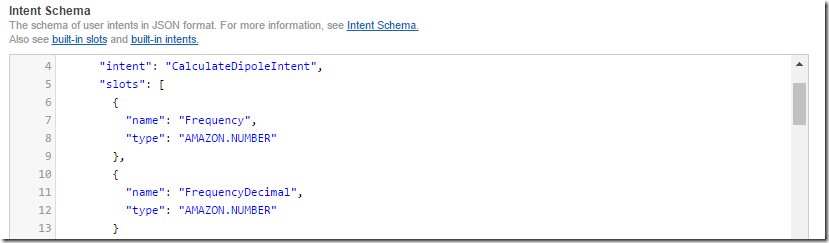
And set the types in the Intent Schema:
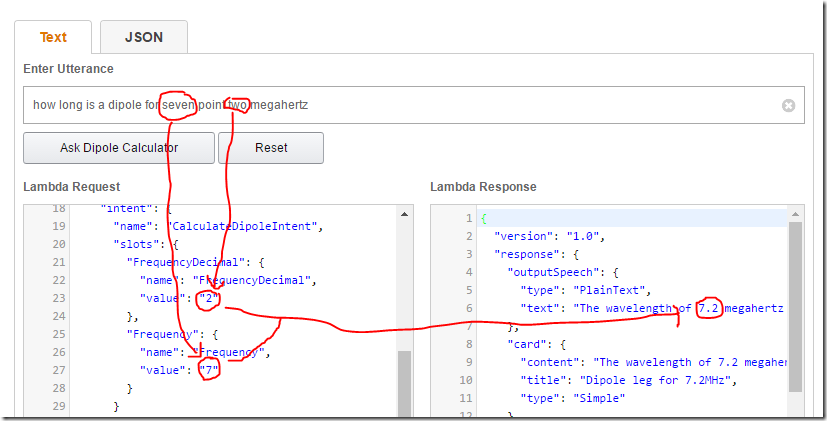
And sure enough it appears to work in the text simulator:
When you try to issue the same command in real-life, however, the number after the decimal place is ‘lost’:
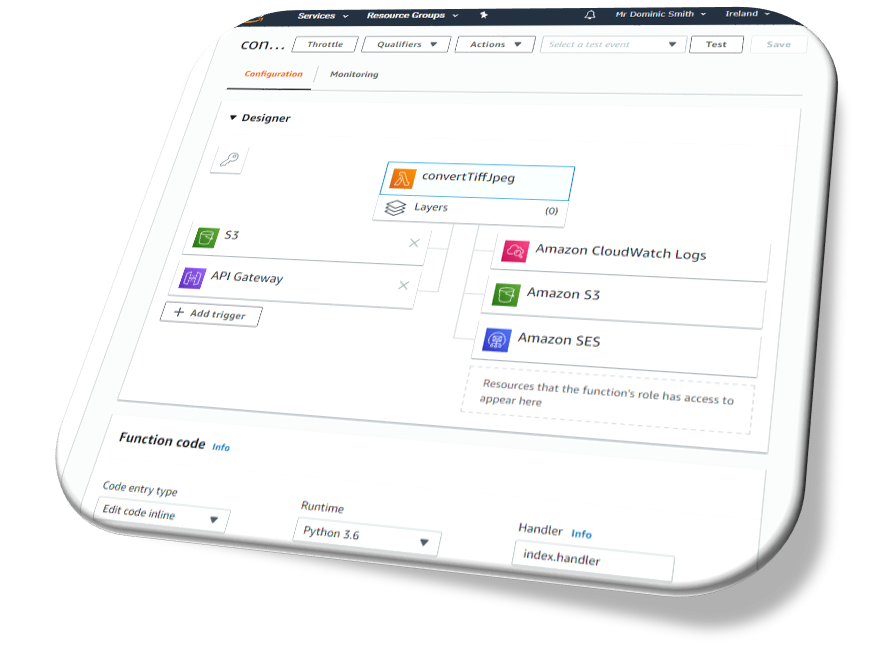
To check what’s going on, I add a console.log() to the function where I run parseFloat(int + “.” + decimal). Checking the logs in AWS CloudWatch reveals that the FrequencyDecimal wasn’t considered a valid value for AMAZON.NUMBER, and so has come back as the infamous ‘?’.
Weird.
Let’s return to the previous, more complex example.
In this case, the decimal place for the first frequency is interpreted correctly, making it evident that my approach should work. But the decimal from the second frequency has again gone missing:
It’s not only me facing this problem, either. There are a number of posts on StackOverflow and also the Amazon Developer Forum (such as this one) without conclusion, other than advising to use literals, which isn’t an option anymore.
Conclusion
You can’t have a decimal value type for a slot
You can work around this limitation by creating two slots, one for the integer and one for the decimal, and then use parseFloat() to stitch them together
But this workaround for some reason won’t work in real life for the last decimal slot in the utterance, even though it appears to be fine in the simulator