Category Archives: Cambridge 105

Keeping Cambridge 105 Radio running

aka: How Cambridge 105 Radio’s technical team has responded to the challenge of our studios being closed by the coronavirus pandemic

The current coronavirus crisis brings a particular challenge for broadcasters. It’s at times like these that both the information, and the company, that we can provide become all the more important. This has been borne out in the notable increase in radio listening that’s been reported nationally and especially locally in recent weeks.

However, we’re still people, and although journalists and those who support them are classsed as ‘key workers’, we can’t justify keeping a shared studio space open, particularly when it’s difficult to clean technical equipment like mixing desks appropriately.

As a small community radio station with very little budget, we can’t just send presenters home with equipment that has been pre-tested and known to work, so we’ve had to get more creative. This post takes you behind-the-scenes at some of the stuff going on and I should stress it’s been a team effort from all of my colleagues in the Engineering team to keep the station on the air. This is far from just my work!

The four types of broadcast

Generally Cambridge 105 Radio operates a schedule that focuses on popular music and ‘generalist’ programming by day, moving to specialist programmes at evenings and weekends. As a general rule, many of the daytime shows are live (and have to be, as they report on current affairs and things like travel news), while we can operate pre-recorded programming for a lot of the specialist shows.

Within that split, some of our presenters have their own home studios already, while others have much less equipment, and perhaps just a laptop and microphone. We quickly identified, therefore, that there are four scenarios we needed to deal with:

  • Live from a home studio
  • Live without much equipment
  • Recorded from a home studio
  • Recorded without much equipment

The home studio scenarios

For the people with home studios (or those able to put some together at short notice), they were the easiest do deal with. Fortunately, we have a long history of doing outside broadcasts, meaning many of our computer systems are exposed outside the studio local network, and we had the option of using an IP-based feed into the studio for live programming. So, for these people we mainly had to ensure they had access to the systems they would need, issue passwords and ensure they had up-to-date copies of imaging, etc.

How do you broadcast without much equipment?

Pre-recorded programmes

For pre-recorded programmes, limited equipment hasn’t proved to be a major issue for many of our presenters, though we have needed to lend some assistance in a few areas. Our general approach is to recommend using the best microphone presenters have available with Audacity or Reaper. Non-linear editing techniques allow the spoken links to be fitted between tracks fairly efficiently, and if there’s only one presenter, this can give an acceptable result providing it is normalised. We’ve had to give a few people who wouldn’t normally pre-record their programmes access to the station’s upload system to submit the finished file, but that’s about it for programmes with a single presenter.

Where more than one presenter is involved producing a pre-recorded programme, we’ve generally been recommending Zoom to record conversations. Hidden away in the settings, even on the Free tier, is a handy option to create a different audio file for each person in the conference, which makes editing a lot easier – in particular with regards to ensuring levels are consistent.
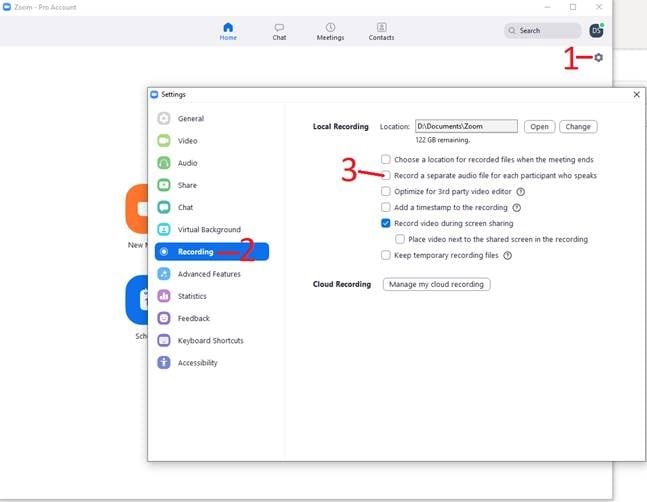
Zoom’s handy option to record a different file for each participant makes editing easier

The big challenge came with live programmes from presenters with limited equipment…

Live programmes

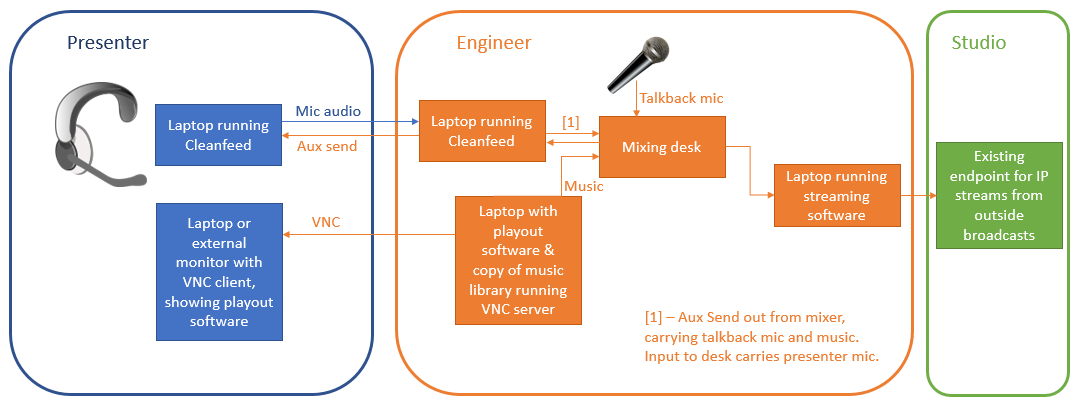
So how can you run a live programme when the presenter is isolating at home with just a laptop and microphone? The solution we came up with is shown diagrammatically below. A couple of us engineers set up temporary home studios, which can be used by the presenter remotely:
Architecture diagram
Architecture diagram of the solution (Click to see enlarged version)

At the presenter’s end, there’s just a laptop with headset and a VNC client.

At the engineer’s hub, there is:

  • A laptop running Cleanfeed. (This is a web-based peer-to-peer voice solution.) The presenter connects to Cleanfeed from their laptop running Chrome. The incoming audio from the presenter is routed to a mixing desk.
  • A laptop running the music playout software, Rivendell, also running a VNC server, which the presenter takes control of during their programme. The copy of Rivendell has a copy of the main studio database and music library. Music played by Rivendell is sent to another input channel on the mixing desk.
  • The engineer has a microphone for talkback to the presenter, which is only routed to the mixer’s aux send.
  • On the mixing desk itself, the input from the presenter and the music are routed to main out. The talkback microphone and the music being played are also routed to aux send. That aux send is then sent back to Cleanfeed. This enables the presenter to hear the music being played, and also to talk to the engineer if necessary during tracks (the engineer can PFL the presenter’s feed from Cleanfeed to allow this, without affecting the broadcast).
  • The main out from the mixer is sent to another laptop running either Opus Transmitter or Butt. (We prefer the Opus codec over MP3 for its low-latency qualities.) Butt now includes Opus by default in its latest version, but we’ve found that it can be unstable, so we tend to use Opus Transmitter – the older port of Butt with Opus support).
  • Butt or Opus Transmitter are connected to the existing endpoint in the studio for outside broadcasts over IP.

Since the presenters have no fader control in this scenario, just the mute button in Cleanfeed, we’ve also had to produce pre-dipped versions of beds (the music used in the background of weather and travel bulletins, for example), which they can just talk over.

The only real issue we’ve found is that the presenter ends up juggling quite a lot on a potentially small laptop screen:

  • emails / texts coming into the studio (presented as a secured webpage)
  • travel news and other scripts
  • the VNC client
  • Cleanfeed in a web-browser tab, which they need to remember not to close

(Top tip: Use the ‘Time offset’ setting for the Rivendell host to account for the delay back to the studio – in our case about 3500ms. That way the presenter sees the delay already built-in on the clock over the VNC connection, and doesn’t need to do any complex back-timing calculations.)

Other things we’ve been doing

There were just a couple of systems in the studios which weren’t exposed externally, such as the studio clock (used to remind presenters of their clock hours and what’s coming next). We’ve also had to write some code to make it easier to see when IRN (Sky News Radio) is scheduled, as that previously required interpreting a crontab. Finally, we’ve now also got some code to pre-compile advert breaks into a single file, meaning that presenters don’t have to hunt for individual adverts over the VNC connection.

The results

Earlier this week, we managed to provide 14 hours of live programming, coming from six different locations across Cambridge. (This was in addition to a further four hours of pre-recorded programming.) This means we’ve been able to continue providing a valuable public service to our community, which is why we’re here.

The presenters seem pretty pleased too. Here’s Alex presenting from home…
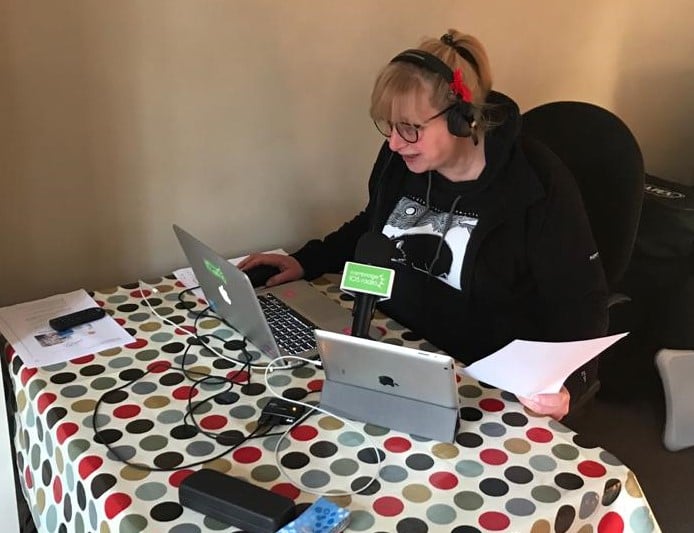
Alex broadcasting remotely from home

…and here’s my home studio in use by Ian Daborn during his Saturday morning programme earlier today.
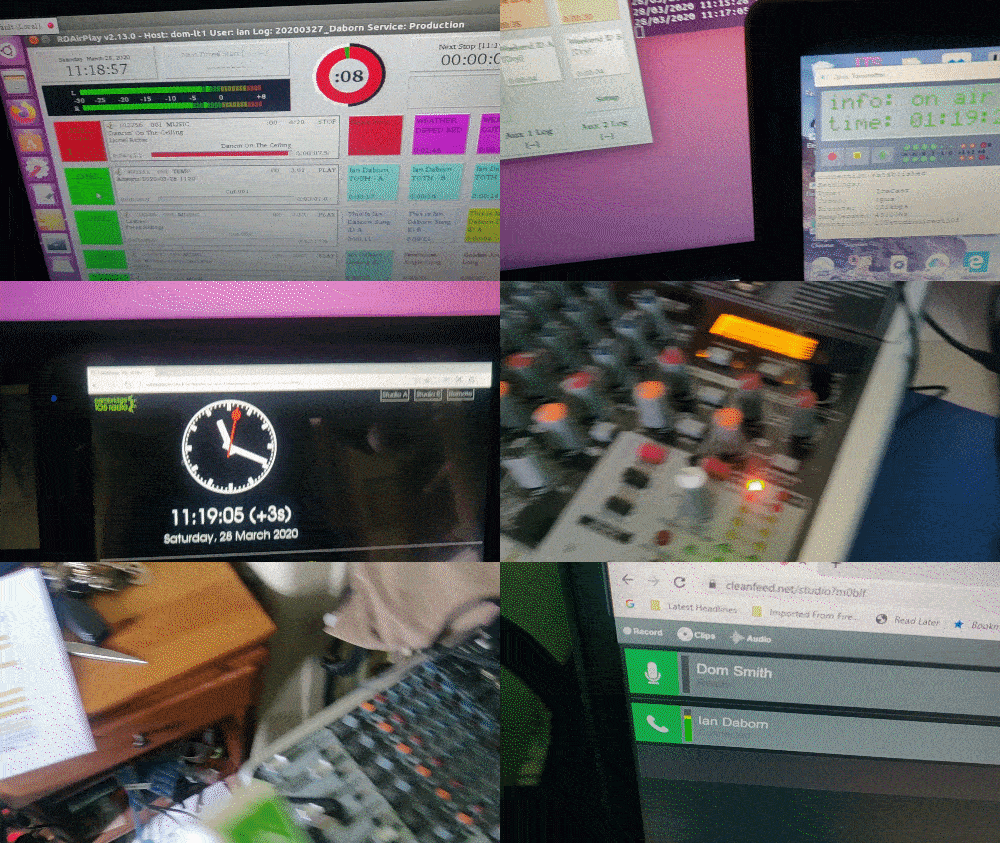
My ‘engineering hub’

To turn this around in just a couple of weeks has been a great team effort. The only significant difference listeners will have heard is that some local news bulletins between programmes have been replaced by the national news from IRN, followed by a local news read. This is because we can use the time while IRN is on to take one feed down and bring up a different one.

Updated May 2020: Although some more programmes are now feeding to the studio directly, most of our live daytime output continues to use this system. Last month we added a 5GHz long-range wifi system to my house and that of one of the other engineers, so that we have redundant internet connections. If either of us lose internet, or it becomes unreliable, we can switch the whole system to using the other person’s network.
Cambridge 105 Radio at Queen Emma & Queen Edith Primary Schools’ ‘Learning Saturday’

Once in a while, two Cambridge primary schools, Queen Emma and Queen Edith join together for a day of extra-curricular, but curriculum-linked, activities for their students on a Saturday.

Today, the theme was ‘Spoken Word’ and so Cambridge 105 Radio were invited along to give the pupils an experience of being on the radio. So, we took our Outside Broadcast van, Flossie, along to the school for a very unusual event.

The basic principle of what we did with each child was simple: a one-minute talk-up, formed of general conversation, to ensure the children weren’t too nervous. This was followed by a real news story to read for the older children. For younger children, they could read the weather forecast or, for those who weren’t of a reading age, they were allowed to make up the weather forecast. Finally, they were allowed to choose a song they would want played after the news.

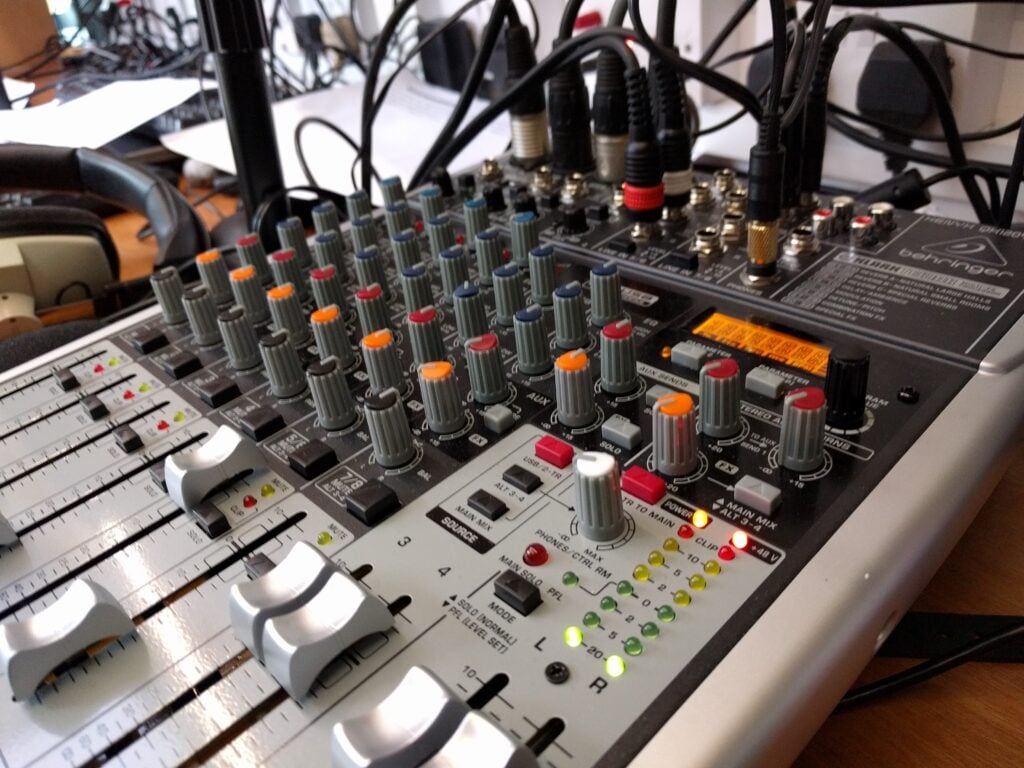
Mixing desk in the Outside Broadcast van

While none of this was broadcast live on-air, it was all recorded, and we are making the recordings available to the schools for distribution. We have also created a short ‘package’ of the material, which is scheduled for broadcast on Monday at about 4:30pm. The entire thing was, however, ‘broadcast’ in the playground over a set of PA speakers, so that friends and family could hear.

The objective was to demonstrate that reading from a script with little preparation time is surprisingly hard, and so the TV news readers they might see are actually doing a difficult job. I must say that the children, even the youngest ones, did a great job and despite some complex words in the scripts, the quality of the ‘reads’ was very high.

While there, we were also given a 30 minute slot to give a short presentation to the children about how radio works, and how you make a radio station. Naturally given the age range of the target audience, we were limited in the detail we could go into, but we were able to cover the basic principles of the electromagnetic spectrum, Morse Code, AM radio, programme scheduling, and the need to put aerials somewhere high.

Our thanks to the schools for inviting us for a very fun event. It seemed to go down very well with the pupils too, with at times a decent queue outside the van, despite the chilly weather. We were also pleased to hear that many children were leaving us excited about the opportunity we’d been able to give them .

Update: You can hear an edited version of the results as a podcast.

How to send a text message to the 1970s

As some of you may know, I’ve been involved in Cambridge 105’s ‘Pirate Cambridge 105’ special event – a 12-hour live broadcast from a riverboat moored on the River Cam, intended to celebrate and reminisce about the golden era of Pirate Radio.

In keeping with the theme, we limited ourselves to only using equipment from the 1960s and 1970s. For mixing desks and audio processing, that’s an easy deal as long as you can get hold of the gear. (It’s amazing what people have hidden in the back of their garage.) But this left a crucial question: How do we get text messages and emails using only 1970s gear?

The easy option would have been to say that we don’t take listener input during the day. But we’d already started making arrangements to broadcast on the Channel 292 frequency, 6070kHz shortwave. This meant that we’d potentially have many more listeners across Europe, so hearing from them would be great.

One bit of technology that did exist in that era, of course, is radio teletype (RTTY).

What’s RTTY?

For those who aren’t familiar with RTTY, essentially you have two audio tones which represent 0 and 1 respectively. Encoding characters in the 5-bit Baudot code, you can set up a radio transmitter to rapidly switch which audio tone it is sending, which lets you transmit characters.

By modern standards, RTTY is incredibly slow: about 50 baud (50 bits per second, or 10 characters per second), but it works.

Originally, the receiving end would have been a teleprinter, which was essentially identical to a mechanical typewriter, but connected to a radio driving it.

So how did we do it?

Well, we didn’t have a genuine teleprinter available, and besides it would have been too noisy next to a radio microphone even if we did. Instead, we got a couple Raspberry Pis (running Fldigi, which allows you to transmit and receive RTTY in software).

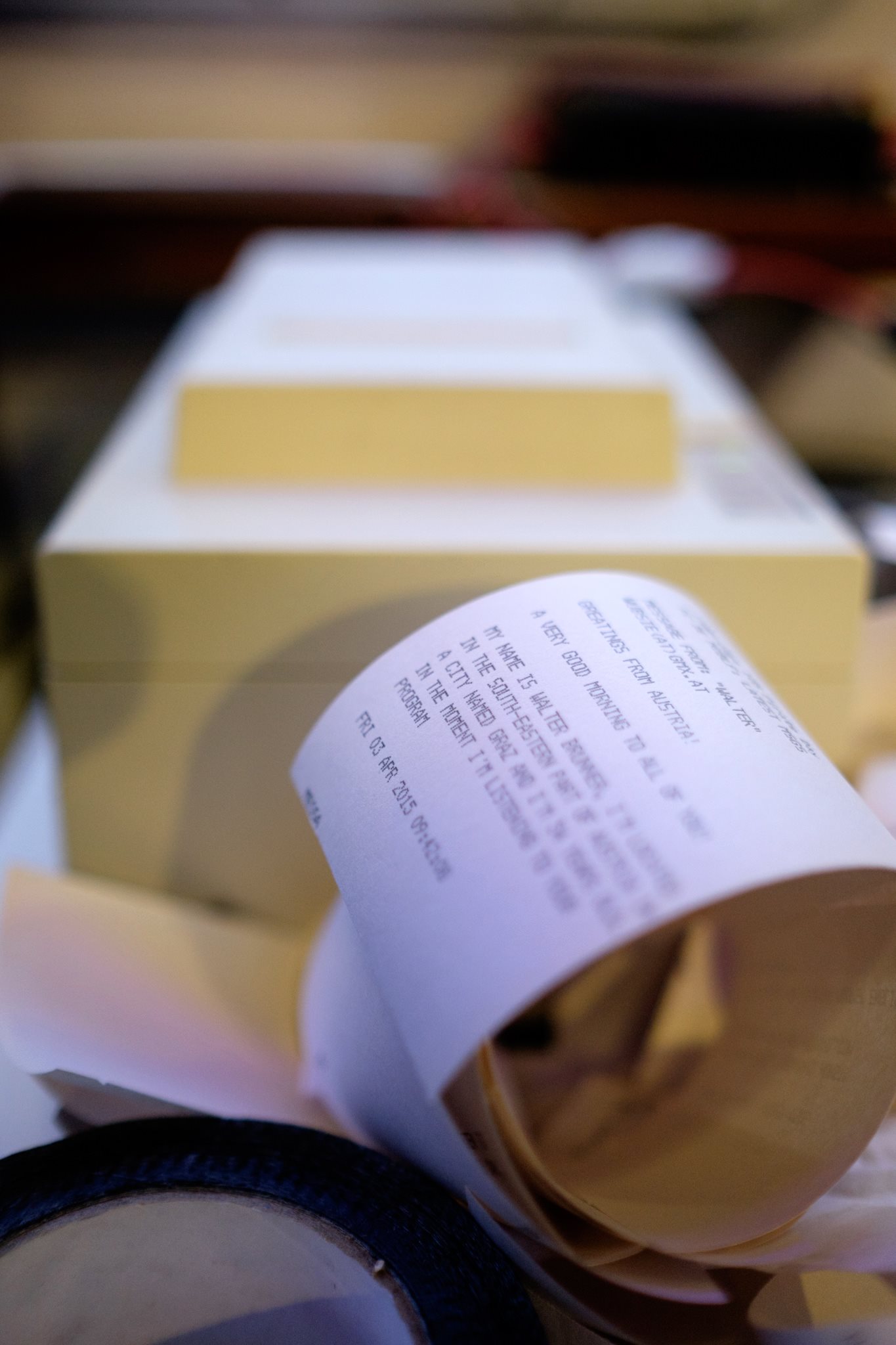
At the transmit end, a script on the Pi grabbed incoming texts, tweets and text messages to the studio and sent them to a radio every 2 minutes. Messages were truncated at 200 characters (to avoid using all the receipt roll at the other end!) and word wraps had to be inserted every 40 characters, which is the width of the receipt printer font we were using.

At the receive end, the other Pi did the decoding – yes, we broke the 1970’s equipment rule, but the technology was still of the era – and sent the result every minute to a dot matrix receipt printer.

Messages that were OK to read on-air could then be given to the presenter by hand, on tiny pieces of receipt roll.

Any improvements?

I don’t know whether we’ll ever have cause to use this system again but, if we do, we need to detect the end of messages rather than just doing the print every minute. We hadn’t expected the volume of messages we received (we used most of roll despite the truncation!) and this meant a significant number of messages got cut as they were printed mid-transmission.

Pirate Receipt Roll
Photo by Jonathan Watts

Cambridge Band Competition finals: Behind-the-scenes at Cambridge 105

As many of you will be aware, one of my many volunteer roles is as an Outside Broadcast Engineer at Cambridge 105, Cambridge’s Community FM radio station.

There are essentially two types of Outside Broadcast music events that we run: those where we do the live music mix, and those where we just take an existing feed and add to it. One of the latter sort of event was our live broadcast from the Cambridge Band Competition at The Junction on 29th March 2014. This is the behind-the-scenes engineer’s view.

The C105 engineer's view

So, what’s going on here?

  • The mixing desk (a Behringer X32 Compact) is receiving a feed from the Front-of-House (FoH) mix, provided by the venue. This stereo pair is the set of faders that are up on the left-hand bank.
  • For some events, we have our own additional mics to get guitar amps (which won’t be fed much/at all to the FoH) and an audience mic so we get the applause at the end. This comes to our mixing desk via a separate feed. (At The Junction, we had the luxury of a set of tie-line from the stage to the room we used for our mix. Normally, we use a Behringer Digital Snake S16 over Ethernet)
  • The Cambridge 105 presenter needs to be able to play pre-recorded music between sets. We use Caban for this, which is on the main left-hand monitor. The presenter(s) have their mics on separate channels on the mixing desk, of course, and the PC takes up another channel.
  • So far, so easy. But the presenter can’t see the stage, and so won’t know when to stop talking, or when to keep waffling. This is a good thing, because a broadcast mix is often sufficiently different from the FoH that we want to mix in an isolated environment. To solve the lack of visibility, however, one of the engineering team (most commonly yours truly) stands next to the stage with a radio mic and set of wireless headphones, and I relay what’s going on. My wireless headphones are supplied with a mix of this talkback and what’s going to air.
  • We also often have a reporter interviewing the acts as they come off stage. That reporter has another pair of wireless headphones (also fed with the talkback + broadcast feed) and another radio mic.
  • The presenter’s headphones are just fed with the off-air feed, not the talkback to avoid distractions. The mixing desk operator can type important messages to the presenter in a Notepad window on the same monitor as Caban.
  • The output from the mixing desk is fed to the laptop in the top-left, which is running Stereo Tool for broadcast compression. We sometimes also use Reaper to record the multi-track output from the desk. Typically, the compressor adds just under a one second delay.
  • From there, the output of that laptop goes into the laptop on the top-right, which is running Butt, to IP stream the broadcast to the Cambridge 105 studio. The IP stream adds another couple of seconds’ delay.
  • The laptop on the top-right also displays the studio email, where we get listener input, as well as automatic notifications if the stream should fail.
  • At the studio, a computer feeds this to the analogue mixing desk in Studio A, where the feed magically appears on a single stereo fader marked ‘Remote’.